
# Majoor Assets Manager for ComfyUI
[](https://github.com/MajoorWaldi/ComfyUI-Majoor-AssetsManager)
[](https://github.com/MajoorWaldi/ComfyUI-Majoor-AssetsManager/stargazers)
[](https://github.com/MajoorWaldi/ComfyUI-Majoor-AssetsManager/network/members)
[](https://github.com/MajoorWaldi/ComfyUI-Majoor-AssetsManager/issues)
[](LICENSE)
[](https://github.com/MajoorWaldi/ComfyUI-Majoor-AssetsManager/releases)
[](https://github.com/MajoorWaldi/ComfyUI-Majoor-AssetsManager/actions/workflows/python-tests.yml)
[](https://www.python.org/)
[](https://github.com/Comfy-Org/ComfyUI)
[](https://vitest.dev/)
[](https://ko-fi.com/majoorwaldi)
**A media library for ComfyUI outputs, with deep workflow inspection and reuse tools.**
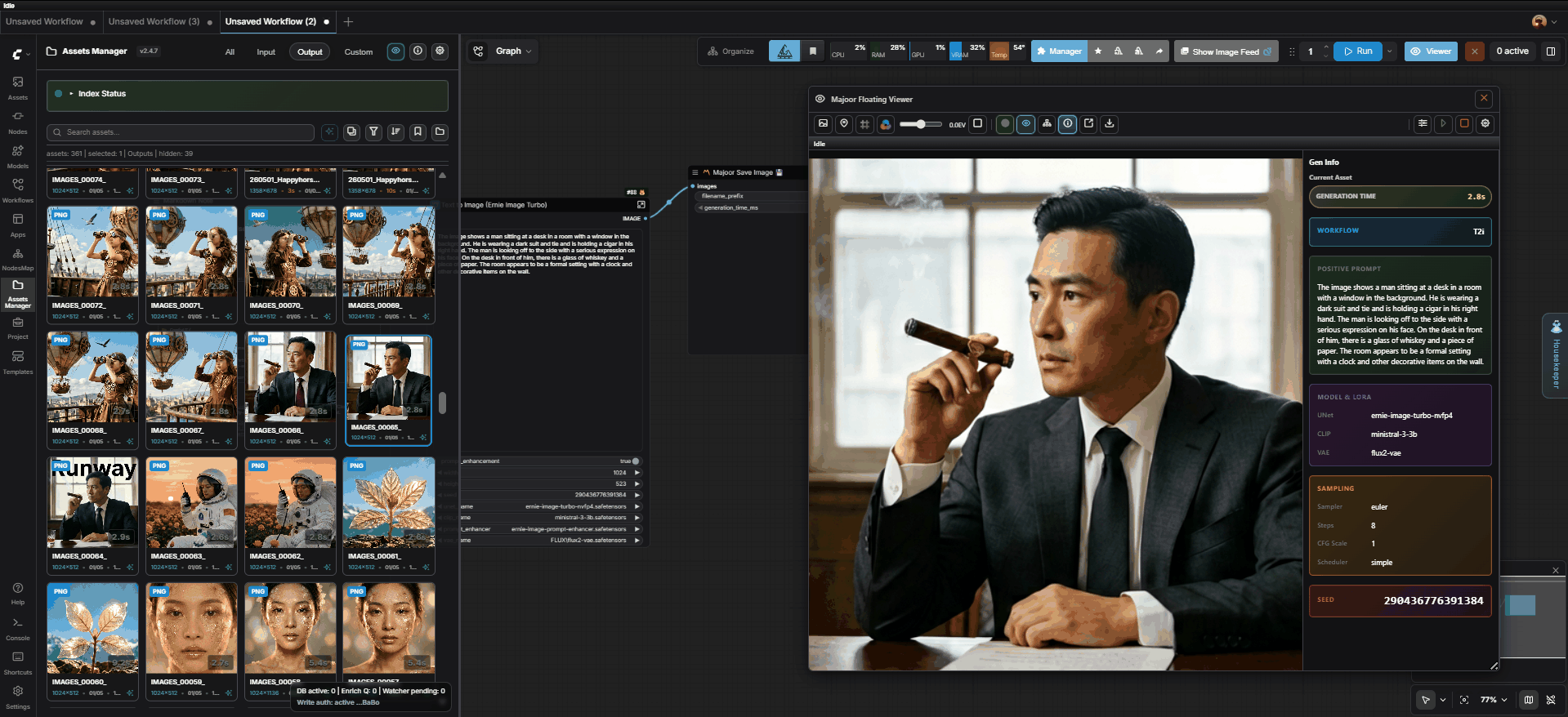
Majoor Assets Manager helps you **browse**, **inspect**, and **reuse** ComfyUI assets without leaving the ComfyUI UI. It is built for large output folders, metadata-heavy workflows, and day-to-day review of generated images, videos, audio, and 3D assets.
## Samples
## Quick Start: 5 Things You Can Do
1. **Browse your outputs**: open the Assets Manager sidebar tab and choose Outputs, Inputs, Custom, or Collections.
2. **Find assets fast**: search by filename, prompt, metadata, type, rating, workflow, date, size, or resolution.
3. **Inspect generation details**: double-click an asset to view media, prompts, workflow metadata, and generation info.
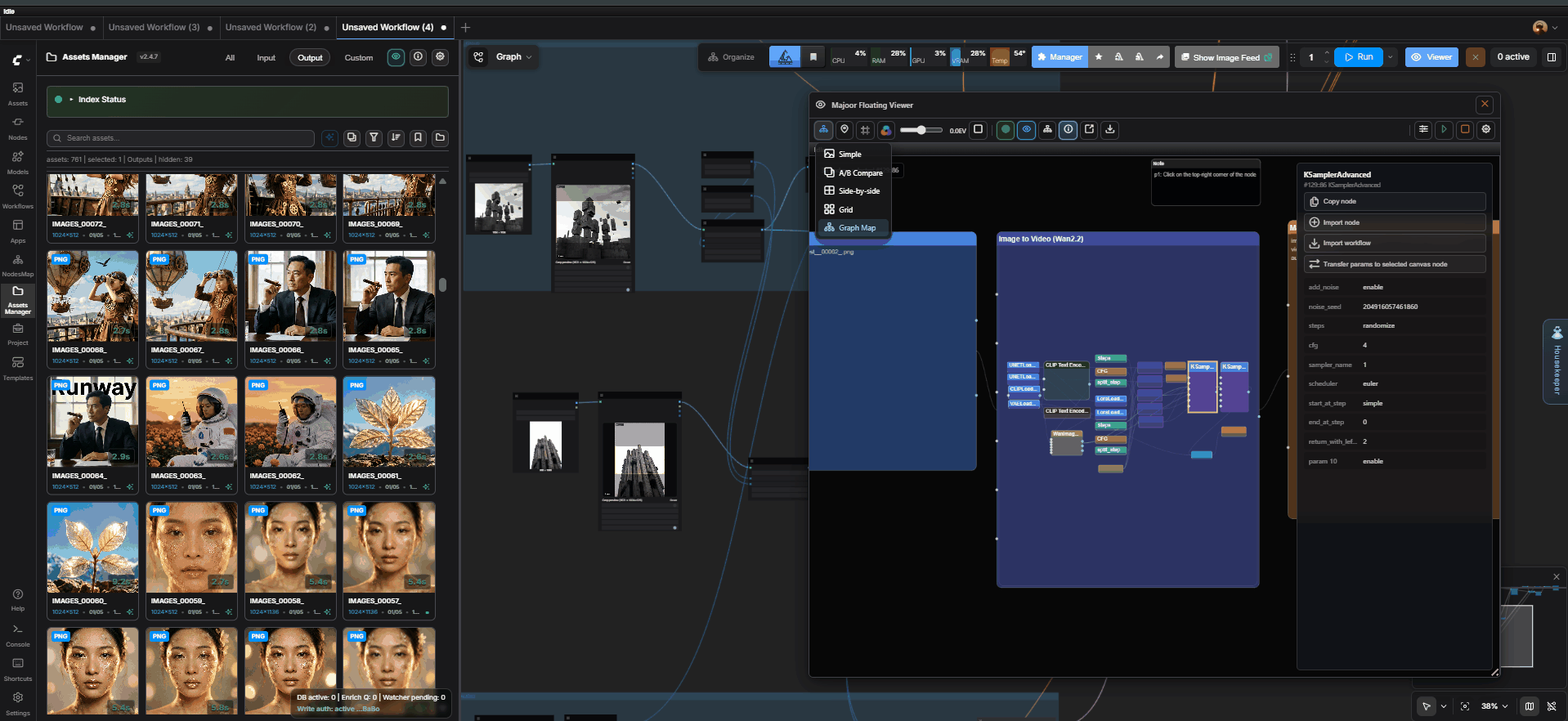
4. **Compare and review**: open the Majoor Floating Viewer for live generations, A/B compare, side-by-side review, pins, and Graph Map workflow inspection.
5. **Reuse assets in ComfyUI**: drag assets to loader nodes or the canvas, use Load Asset, stage files to input, export clean files, or download selected files as a ZIP.
Useful first links:
- User guide: [`user_guide.html`](user_guide.html)
- Documentation index: [`docs/DOCUMENTATION_INDEX.md`](docs/DOCUMENTATION_INDEX.md)
- Workflow tab guide: [`docs/WORKFLOWS.md`](docs/WORKFLOWS.md)
- MFV guide: [`docs/MFV_GUIDE.md`](docs/MFV_GUIDE.md)
- Graph Map guide: [`docs/GRAPH_MAP.md`](docs/GRAPH_MAP.md)
- Changelog: [`CHANGELOG.md`](CHANGELOG.md)
---
## Table of Contents
- [Browse, Inspect, Reuse](#browse-inspect-reuse)
- [Latest Release](#latest-release)
- [Installation](#installation)
- [Basic Usage](#basic-usage)
- [Majoor Floating Viewer (MFV)](#majoor-floating-viewer-mfv)
- [Graph Map](#graph-map)
- [Workflow Tab](#workflow-tab)
- [Custom Nodes](#custom-nodes)
- [Hotkeys & Shortcuts](#hotkeys--shortcuts)
- [Advanced Features](#advanced-features)
- [Troubleshooting](#troubleshooting)
- [Development & Testing](#development--testing)
- [Support](#support)
---
## Browse, Inspect, Reuse
### Browse
Use Assets Manager as a fast library for ComfyUI media:
- virtual grid browsing for large output folders
- Outputs, Inputs, Custom roots, and Collections scopes
- full-text search and structured filters
- ratings, tags, collections, duplicate awareness, and generation stacks
- right-click actions for rename, delete, open folder, copy path, download, and ZIP export
- Collect Files: one click bundles an asset, its workflow JSON, traced prompt text, and all referenced media inputs into a ZIP next to the file ([`docs/COLLECT_FILES.md`](docs/COLLECT_FILES.md))
### Inspect
Open assets when you need to understand how they were made:
- image, video, audio, and 3D preview surfaces
- prompts, workflow metadata, generation info, and timing details
- Majoor Floating Viewer for live review, A/B comparison, pins, and streams
- Graph Map for readable workflow navigation and node detail inspection
### Reuse
Move useful assets and workflow context back into ComfyUI:
- drag assets to compatible loader nodes or the canvas
- use **Load Asset** to create loader nodes from selected media
- stage files into the ComfyUI input directory
- save, import, categorize, thumbnail, and reload workflow JSON files from the Workflow tab
- import or inspect embedded workflows without losing the current review flow
- export originals, clean metadata-stripped files, or selected files as a ZIP
---
## Latest Release
### v2.5.0 Highlights
- **Experimental JPEG XL support**: Optionally index, preview, view, and drag `.jxl` images.
- **Native ComfyUI subgraphs**: Graph Map recursively expands nested subgraphs, including shared root-level definitions.
- **Richer technical metadata**: Inspect bit depth, pixel format, encoder, and color-space information.
- **Runtime metadata ingestion**: Preserve prompt, workflow, GenInfo, job, and source-node context after execution.
- **Viewer and source-file actions**: Use additional playback speeds and open generation source files in the viewer, Floating Viewer, folder, or asset loader.
- **Find Similar menu**: Find similar or duplicate assets and outputs from the same save node or workflow.
- **Output fidelity**: Majoor Save images include an sRGB ICC profile and MP4 outputs are explicitly tagged as BT.709.
- **Stability fixes**: Improved tags shortcuts, playback state, Floating Viewer controls, source-file loading, popover dismissal, and subgraph parsing.
See [CHANGELOG.md](CHANGELOG.md) for the complete release notes.
---
## Installation
### Method A: ComfyUI Manager (Recommended)
1. Open **ComfyUI Manager** in your browser
2. Search for **"Majoor Assets Manager"**
3. Click **Install**, then restart ComfyUI completely
4. The extension appears in the sidebar as a folder icon
### Method B: Manual Installation
```bash
# Navigate to ComfyUI custom_nodes directory
cd ComfyUI/custom_nodes
# Clone the repository
git clone https://github.com/MajoorWaldi/ComfyUI-Majoor-AssetsManager ComfyUI-Majoor-AssetsManager
# Install Python dependencies
cd ComfyUI-Majoor-AssetsManager
pip install -r requirements.txt
# Optional: install AI/vector features
# pip install -r requirements.txt -r requirements-vector.txt
# Optional: install contributor tooling
# pip install -r requirements-dev.txt
# Restart ComfyUI
```
Dependency ownership is documented in [`docs/DEPENDENCY_POLICY.md`](docs/DEPENDENCY_POLICY.md). `requirements.txt` is the primary source of truth, `requirements-vector.txt` layers optional AI/vector dependencies on top, and `requirements-dev.txt` is reserved for contributor tooling.
### Optional Dependencies (Highly Recommended)
For full metadata extraction and media probing:
#### Windows
```powershell
# Using Scoop
scoop install ffmpeg exiftool
# OR using Chocolatey
choco install -y ffmpeg exiftool
# OR using WinGet
winget install -e --id Gyan.FFmpeg
winget install -e --id OliverBetz.ExifTool
```
#### macOS
```bash
brew install ffmpeg exiftool
```
#### Linux
```bash
# Ubuntu/Debian
sudo apt update
sudo apt install -y ffmpeg libimage-exiftool-perl
# Fedora/RHEL
sudo dnf install -y ffmpeg perl-Image-ExifTool
# Arch Linux
sudo pacman -S ffmpeg exiftool
```
Verify installation:
```bash
exiftool -ver
ffprobe -version
```
See [`docs/INSTALLATION.md`](docs/INSTALLATION.md) for detailed instructions.
### Experimental JPEG XL Support
JPEG XL indexing is disabled by default because decoder availability varies between Pillow and FFmpeg builds.
1. Open **Settings → Majoor Assets Manager → Scanning**.
2. Enable **JPEG XL (JXL) support (Experimental)**.
3. Run a new scan to index existing `.jxl` files.
Majoor can then index, preview, view, and drag JPEG XL assets. Thumbnail generation still requires JPEG XL support in the installed Pillow or FFmpeg build. The equivalent environment variable is `MAJOOR_ENABLE_JXL=1`.
### ComfyUI Desktop Popup Workaround
If you use the official **ComfyUI Desktop / Electron** build and want the **Majoor Floating Viewer** to open in a real detachable window that can be moved to another monitor, the Desktop host must allow `window.open("about:blank")` popups.
The Majoor plugin already tries to open a real popup first on Desktop. Some Desktop builds still block that popup in the Electron host and redirect it to the OS instead. If that happens, use the advanced workaround in [`docs/DESKTOP_POPUP_WORKAROUND.md`](docs/DESKTOP_POPUP_WORKAROUND.md). Browser-based ComfyUI does not require this Electron host patch.
---
## Custom Nodes
Majoor Assets Manager ships three ComfyUI nodes. Majoor Save Image and Majoor Save Video persist **generation timing metadata** directly inside saved files, allowing the asset manager to index `generation_time_ms` alongside prompt/workflow data. Majoor GenInfo Override supplies explicit generation metadata to either save node.
Full reference: [`docs/CUSTOM_NODES.md`](docs/CUSTOM_NODES.md)
The video node requires PyAV. It is included in the runtime dependency contract (`requirements.txt` and `pyproject.toml`) so the documented manual install commands install it automatically.
### Majoor GenInfo Override 🧩
Builds an explicit `MAJOOR_GENINFO` payload for Majoor Save Image or Majoor Save Video. Use it when automatic graph tracing cannot reliably identify prompts, seeds, sampler settings, models, LoRAs, or custom workflow notes.
Connect its `geninfo_override` output to the matching input on a Majoor Save node. The optional `workflow_context` input can be connected to a late workflow node so the override executes with complete graph context.
### Majoor Save Image 💾
Drop-in replacement for the built-in **SaveImage** node. Saves PNG files with `generation_time_ms` embedded in the PNG text chunks.
| Input | Type | Required | Default | Description |
|-------|------|----------|---------|-------------|
| `images` | IMAGE | ✅ | — | The image batch to save |
| `filename_prefix` | STRING | ✅ | `Majoor` | Filename prefix (supports ComfyUI `%date%` placeholders) |
| `generation_time_ms` | INT | ❌ | `-1` (auto) | Generation time in ms. `-1` = auto-detect from prompt lifecycle |
**Metadata written to each PNG:**
- `prompt` — full ComfyUI prompt graph (JSON)
- `workflow` — full workflow (JSON)
- `generation_time_ms` — elapsed time since prompt start (ms)
- `CreationTime` — ISO timestamp
### Majoor Save Video 🎬
Saves a **VIDEO** input or a batch of **IMAGE** frames as a video file. Supports MP4 (h264 via PyAV), GIF, and WebP.
| Input | Type | Required | Default | Description |
|-------|------|----------|---------|-------------|
| `filename_prefix` | STRING | ✅ | `MajoorVideo` | Filename prefix |
| `format` | COMBO | ✅ | `mp4 (h264)` | Output format: `mp4 (h264)`, `gif`, `webp` |
| `images` | IMAGE | ❌ | — | Batch of frames (alternative to `video`) |
| `video` | VIDEO | ❌ | — | A VIDEO input from LoadVideo/CreateVideo |
| `frame_rate` | FLOAT | ❌ | `24.0` | FPS (ignored when VIDEO input carries its own rate) |
| `loop_count` | INT | ❌ | `0` | Loop count for GIF/WebP (0 = infinite) |
| `generation_time_ms` | INT | ❌ | `-1` (auto) | Generation time in ms. `-1` = auto-detect |
| `audio` | AUDIO | ❌ | — | Audio track to mux into MP4 |
| `crf` | INT | ❌ | `19` | Constant Rate Factor (0-63, lower = higher quality) |
| `save_first_frame` | BOOLEAN | ❌ | `true` | Save a PNG sidecar of the first frame with full metadata |
**MP4 container metadata:**
- `prompt`, `workflow`, `generation_time_ms`, `CreationTime` — written via PyAV with `movflags=use_metadata_tags`
**Notes:**
- At least one of `images` or `video` must be connected
- When a `video` input is connected, its native frame rate and audio are used automatically
- GIF/WebP outputs rely on the PNG sidecar for metadata persistence
### Auto-Detection of `generation_time_ms`
When `generation_time_ms` is left at `-1` (default), the node reads the prompt start time from Majoor's `runtime_activity` module, which hooks into the ComfyUI prompt lifecycle. This gives an accurate wall-clock measurement of generation time without any manual wiring.
If the Majoor nodes are **not** used, the asset manager falls back to its standard metadata extraction (EXIF dates, prompt graph analysis, etc.).
---
## Basic Usage
### First Steps
1. **Open Assets Manager**: Click the folder icon in ComfyUI sidebar
2. **Choose Scope**: Select Outputs, Inputs, Custom, or Collections
3. **Browse Assets**: Scroll through the grid view with virtual scrolling
4. **Search**: Type in the search bar for full-text search
5. **Filter**: Use dropdowns for kind, rating, workflow, date filters
### Asset Operations (Right-Click Menu)
- **Open in Viewer**: Double-click or right-click → Open in Viewer
- **Rate**: Assign 0-5 stars
- **Edit Tags**: Add/remove custom tags
- **Add to Collection**: Save to existing or new collection
- **Rename**: Change filename
- **Delete**: Remove asset (with confirmation)
- **Open in Folder**: Show in file explorer
- **Collect Files**: Bundle the asset, its workflow, traced prompt text, and all referenced media inputs into a ZIP created next to the file (see [`docs/COLLECT_FILES.md`](docs/COLLECT_FILES.md))
- **Copy Path**: Copy full file path to clipboard
- **Stage to Input**: Copy to ComfyUI input directory
### Collections
1. Select assets (Ctrl/Cmd+click for multiple)
2. Right-click → **Add to Collection**
3. Create new or add to existing collection
4. Access via **Collections** scope
---
## Majoor Floating Viewer (MFV)
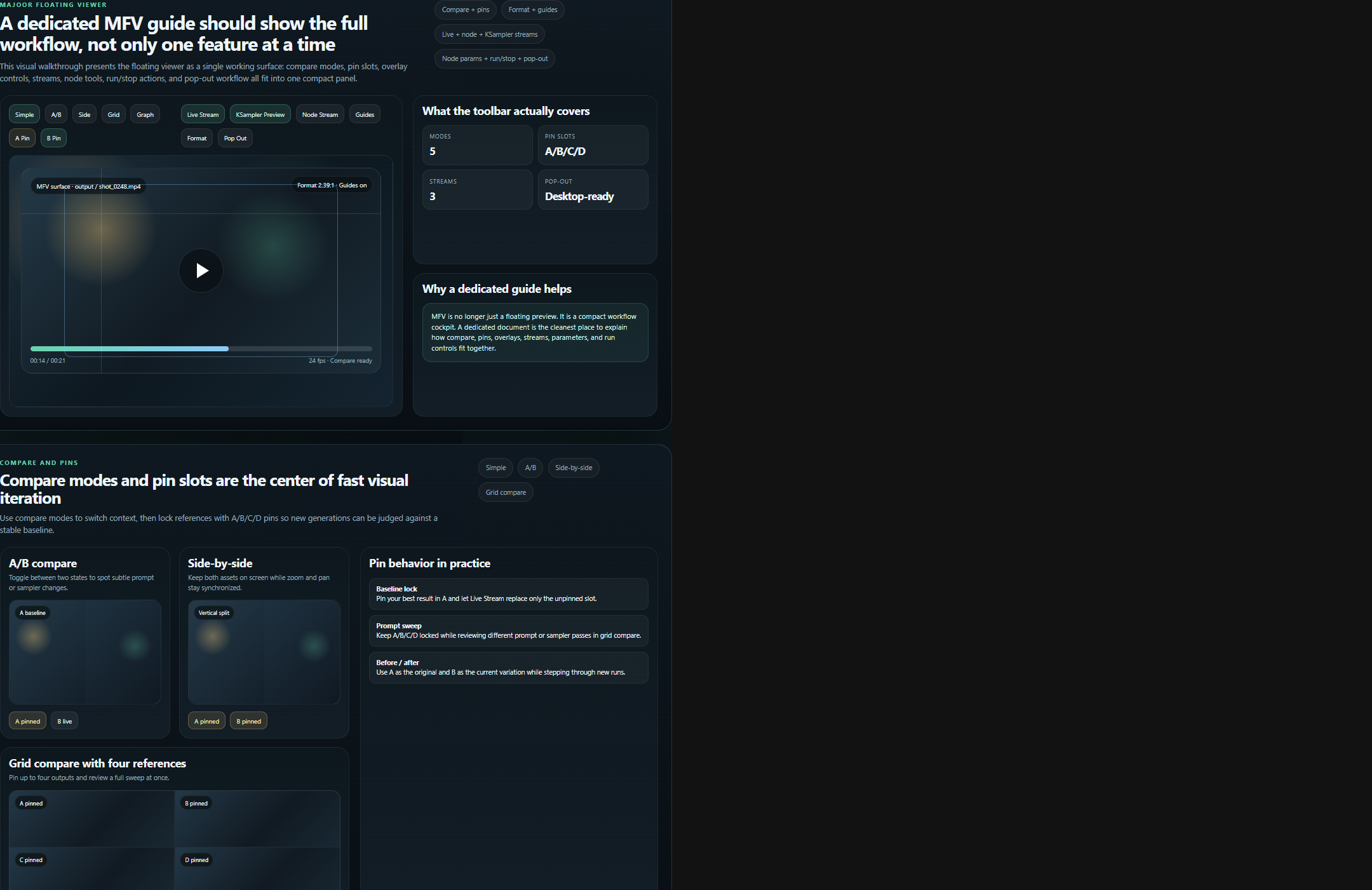
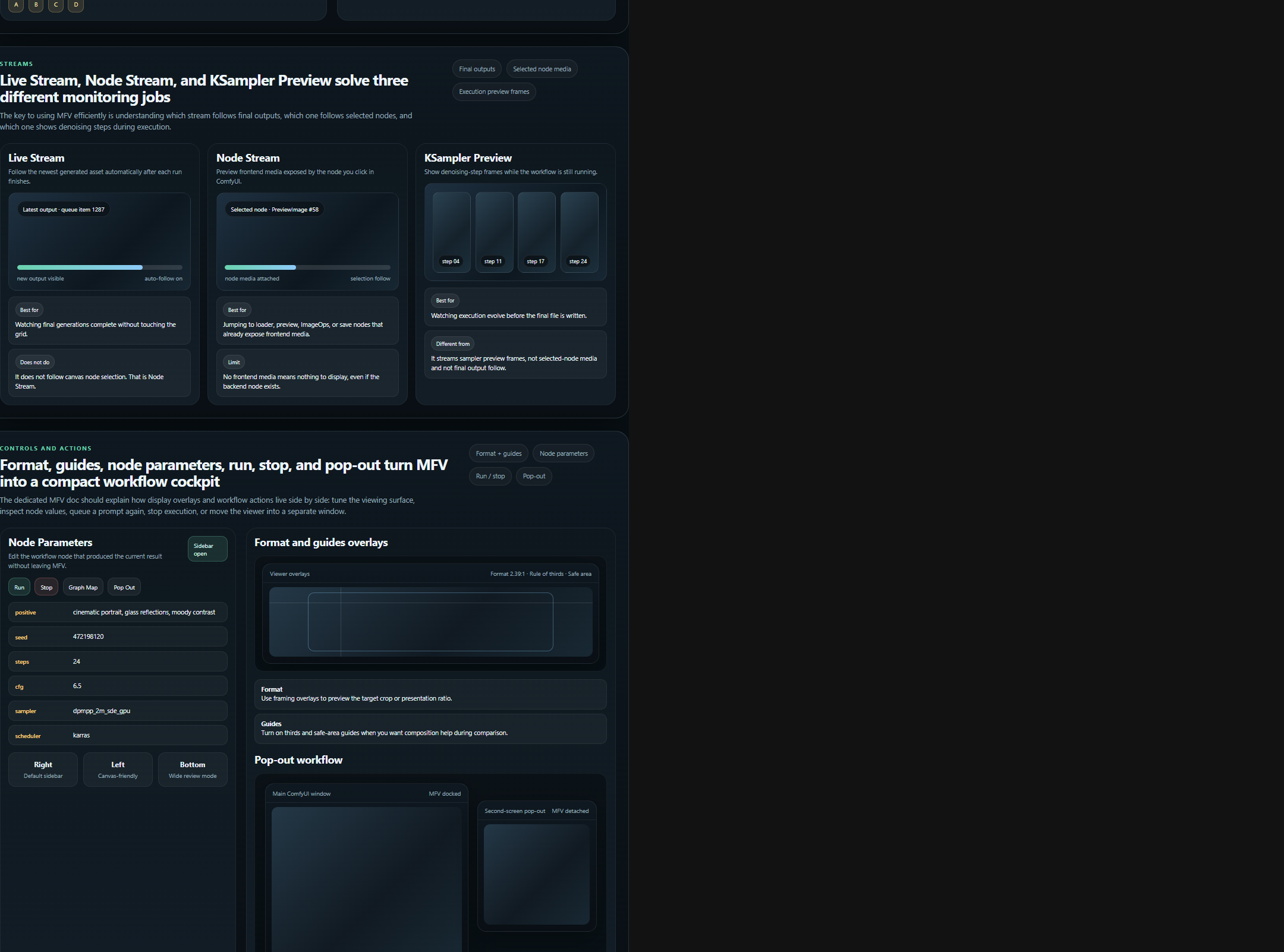
MFV now has a dedicated illustrated guide focused on the real workflow inside the floating viewer: compare modes, A/B/C/D pins, Live Stream, Node Stream, KSampler Preview, Node Parameters, Run / Stop, Pop-out, and the Graph Map companion view.
### Opening the Floating Viewer
- Click the **Floating Viewer** button in the Assets Manager toolbar
- Or use the viewer from the ComfyUI canvas context menu
### Live Stream Mode
- Automatically tracks new generations
- Follows the latest completed output file instead of the currently selected node
- No manual refresh needed
### Compare Modes
- **Simple**: Single asset view
- **A/B Compare**: Fast two-slot comparison
- **Side-by-Side**: View both assets simultaneously
- **Grid**: Review up to four pinned or selected references together
### Node Stream
- Enable Node Stream, then select a compatible node in ComfyUI
- MFV shows the selected node's media when that node exposes a frontend preview
- Useful for preview nodes, loader/save nodes, and compatible live-preview surfaces
### Disable MFV Auto-Open
If the Floating Viewer opens automatically during renders or after clicking nodes, turn off the stream features that trigger it:
1. Open **Settings** → **Majoor Assets Manager** → **Viewer**.
2. Disable **Majoor: MFV Live Stream Enabled by Default** to stop MFV from auto-following final render outputs when a generation finishes.
3. Disable **Majoor: MFV KSampler Preview Enabled by Default** to stop MFV from auto-opening for sampler/denoising preview frames during a render.
4. In the Floating Viewer toolbar, turn **Node Stream** off if node clicks are making MFV follow selected-node previews.
You can still open MFV manually with the toolbar button or the **V** shortcut after disabling these defaults.
### Why MFV And Graph Map Work Together
- Use **MFV** for live review, compare, pins, streams, and quick reruns.
- Open **Graph Map** when you need workflow context for the current asset.
- Move from visual review to readable node and subgraph inspection without leaving the viewer workflow.
See [`docs/MFV_GUIDE.md`](docs/MFV_GUIDE.md) for the dedicated MFV guide, [`docs/GRAPH_MAP.md`](docs/GRAPH_MAP.md) for the full workflow-map walkthrough, and [`docs/VIEWER_FEATURE_TUTORIAL.md`](docs/VIEWER_FEATURE_TUTORIAL.md) for the broader viewer documentation.
---
## Graph Map
Graph Map is the workflow navigation view inside the Floating Viewer. It keeps the asset preview, the saved workflow, and the selected node details together so you can understand where a result came from without leaving the viewer.
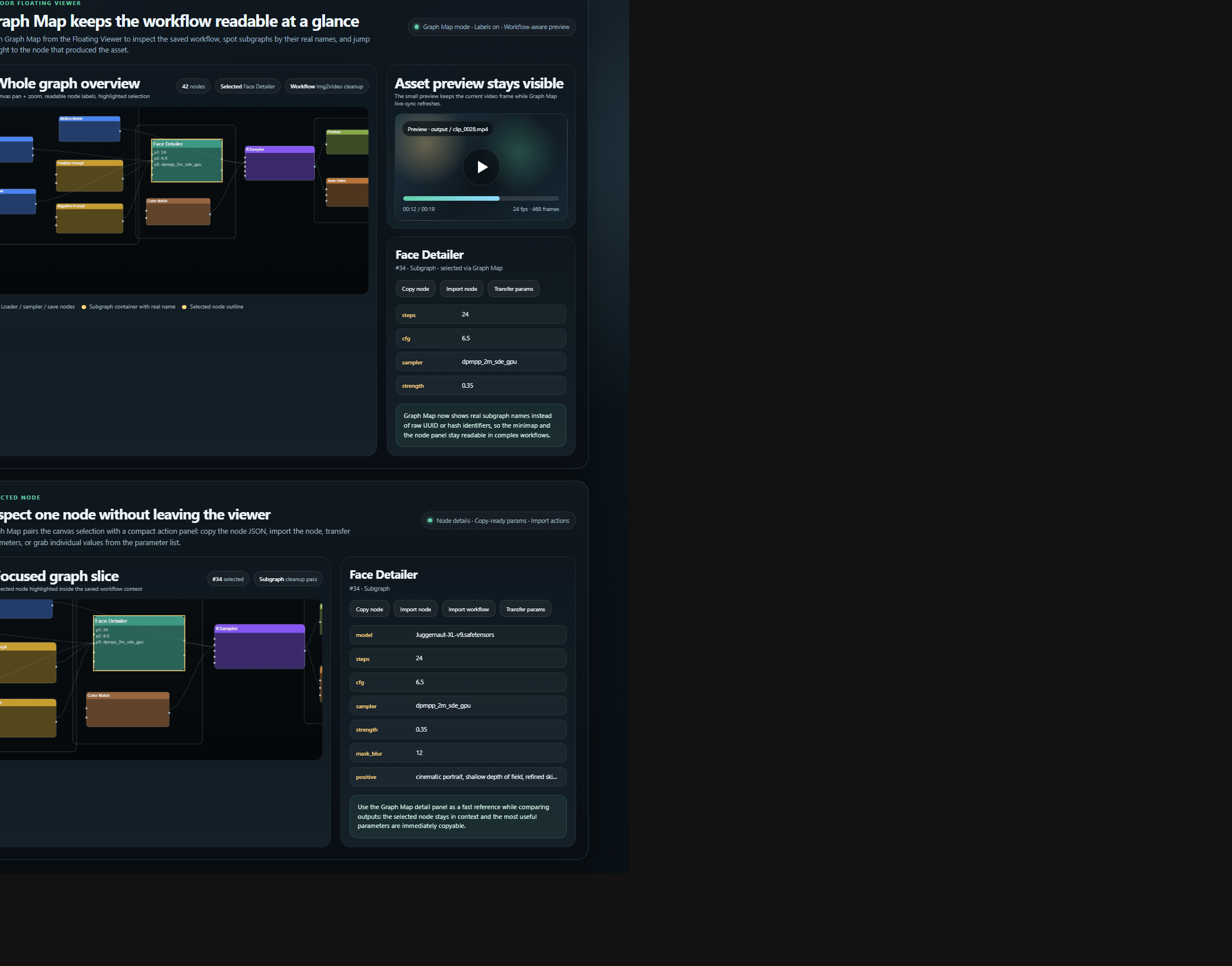
- **Readable workflow view**: node labels stay visible and named subgraphs show their real names instead of raw UUID/hash identifiers.
- **Native nested subgraphs**: recursively expands ComfyUI subgraphs and resolves definitions shared by the root workflow.
- **Direct node inspection**: click a node to open copyable parameters and actions such as copy node, import node, import workflow, or transfer params.
- **Viewer-friendly preview**: the small media preview stays in place while Graph Map refreshes, which is especially useful for video assets.
For the full walkthrough and the second screenshot focused on the node detail panel, see [`docs/GRAPH_MAP.md`](docs/GRAPH_MAP.md).
### Controls
- **Zoom**: Mouse wheel
- **Pan**: Click and drag
- **Move Panel**: Drag from panel header
- **Resize**: Drag panel edges
- **Close**: ESC or close button
- **Focused Player Shortcuts**: Click once on the inline player, then use **Space** to play/pause and **Left/Right** to step frame by frame
---
## Workflow Tab
The Workflow tab is a reusable workflow library for ComfyUI `.json` files. It can save the current canvas, import workflow JSON files, load saved workflows back into ComfyUI, inspect them in Graph Map, and organize them with categories, tags, thumbnails, notes, favorites, usage metadata, and detected task/model/provider fields.
See [`docs/WORKFLOWS.md`](docs/WORKFLOWS.md) for the full Workflow tab guide.
---
## Hotkeys & Shortcuts
### Global / Panel
| Shortcut | Action |
|----------|--------|
| **Ctrl+S** / **Cmd+S** | Trigger index scan |
| **Ctrl+F** / **Ctrl+K** | Focus search input |
| **Ctrl+H** | Clear search input |
| **D** | Toggle sidebar (details) |
| **V** | Toggle Floating Viewer |
### Grid View
| Shortcut | Action |
|----------|--------|
| **Arrow Keys** | Navigate selection |
| **Enter** / **Space** | Open Viewer |
| **V** | Open selected asset in Floating Viewer |
| **S** | Download selected asset |
| **Ctrl+A** | Select all |
| **Ctrl+D** | Deselect all |
| **Ctrl+Click** | Toggle selection |
| **Shift+Click** | Range selection |
| **0-5** | Set rating (0-5 stars) |
| **T** | Edit tags |
| **B** | Add to collection |
| **F2** | Rename file |
| **Delete** | Delete file |
### Viewer
| Shortcut | Action |
|----------|--------|
| **Esc** | Close viewer |
| **F** | Toggle fullscreen |
| **D** | Toggle info panel |
| **Space** | Play/pause video |
| **S** | Download original from context menu |
| **Left/Right** | Previous/next asset, or step frame when the focused player bar is active |
| **Mouse Wheel** | Zoom in/out |
| **I** | Toggle pixel probe |
| **C** | Copy probed color |
| **L** | Toggle loupe |
| **Z** | Toggle zebra patterns |
| **G** | Cycle grid overlays |
| **Alt+1** | Toggle 1:1 pixel view |
### Drag & Drop
| Gesture | Action |
|---------|--------|
| **S+Drag to OS** | Export clean copy/ZIP without ComfyUI metadata |
| **L+Drop on canvas** | Load selected asset(s) by creating matching media loader node(s) |
### MFV
| Shortcut | Action |
|----------|--------|
| **Esc** | Close Floating Viewer |
| **V** | Toggle Floating Viewer |
| **C** | Cycle quick compare modes: Simple, A/B, Side-by-Side |
| **K** | Toggle KSampler Preview |
| **L** | Toggle Live Stream |
| **N** | Toggle Node Stream |
| **Space** | Play/pause the focused inline player |
| **Left/Right** | Step frame when the focused inline player is active |
See [`docs/HOTKEYS_SHORTCUTS.md`](docs/HOTKEYS_SHORTCUTS.md) and [`docs/SHORTCUTS.md`](docs/SHORTCUTS.md) for complete lists.
---
## Advanced Features
The README focuses on the user workflow. Detailed reference material lives in the docs folder so new users do not have to read every subsystem before using the extension.
### AI And Vector Search
Optional AI features add semantic search, visual similarity, auto-tags, captions, prompt alignment, and smart collection suggestions. They require additional model dependencies and a vector backfill step for best coverage.
Low-VRAM systems can disable semantic search, disable vector indexing during scans, keep vector concurrency at `1`, and enable **Unload AI models after use** in Settings -> Search -> AI. The **Memory purge** action in Index Status releases Majoor's SigLIP/X-CLIP/Florence caches and asks ComfyUI to unload loaded models when the queue is idle.
Read: [`docs/AI_FEATURES.md`](docs/AI_FEATURES.md)
### Privacy And Offline Use
AI inference is designed to run locally. Internet access is mainly needed for the first model download from HuggingFace, and cached models can be used offline afterward.
Read: [`docs/PRIVACY_OFFLINE.md`](docs/PRIVACY_OFFLINE.md)
### Configuration And Security
Most users can use the default local setup. Remote access, API tokens, safe-mode write controls, index directory overrides, and environment variables are documented separately.
Read:
- [`docs/SETTINGS_CONFIGURATION.md`](docs/SETTINGS_CONFIGURATION.md)
- [`docs/SECURITY_ENV_VARS.md`](docs/SECURITY_ENV_VARS.md)
- [`docs/THREAT_MODEL.md`](docs/THREAT_MODEL.md)
### API, Database, And Maintenance
Backend endpoint details, database recovery, index reset, and contributor architecture notes are available as advanced references.
Read:
- [`docs/API_REFERENCE.md`](docs/API_REFERENCE.md)
- [`docs/DB_MAINTENANCE.md`](docs/DB_MAINTENANCE.md)
- [`docs/ARCHITECTURE_MAP.md`](docs/ARCHITECTURE_MAP.md)
- [`docs/TESTING.md`](docs/TESTING.md)
---
## Troubleshooting
### Extension Not Appearing
- Verify installation in `custom_nodes/ComfyUI-Majoor-AssetsManager`
- Check ComfyUI console for import errors
- Ensure core dependencies are installed: `pip install -r requirements.txt`
- If you use AI/vector features, also install: `pip install -r requirements.txt -r requirements-vector.txt`
- Restart ComfyUI completely
### Database Corruption
If the index database is corrupted:
**Option 1: Use Delete DB Button** (Recommended)
1. Open Assets Manager → Index Status section
2. Click **Delete DB** button
3. Confirm the warning dialog
4. Database rebuilds automatically
**Option 2: Manual Recovery**
1. Stop ComfyUI completely
2. Navigate to `